
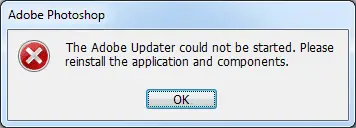
Running Adobe Photoshop on Windows 7 Release Candidate I get the error message "The Adobe Updater could not be started. Please reinstall the application and components." This post looks at how to get rid of the error message when starting Photoshop (but does not get the Adobe Updater actually working).
Screenshot of error message
Here’s a screenshot of the error message:
Some additional notes
Some additional notes before I give you the answer:
1) This error presented itself to me with Adobe Photoshop CS2 (version 9.0 and 9.0.2 after updating manually).
2) I didn’t get this error message on Windows Vista or Windows 7 Beta.
3) I got the error message the first time I ran Adobe Photoshop so there clearly wasn’t any point in reinstalling it to fix the error.
4) The solution at http://kb2.adobe.com/cps/331/331634.html doesn’t work because trying to run "cacls "c:documents and settingsall users" /T /E /C /G administrators:F" results in an " Access is denied" error message. Not surprising because "c:documents and settings" is a restricted directory.
5) The solution at http://forums.adobe.com/thread/372532 is what I use here. It gets rid of the error message but the Adobe Updater no longer runs. You’ll need to check the Adobe website for future updates to your Adobe products.
The solution
Open the file at C:ProgramDataAdobeUpdaterAdobeESDGlobalApps.xml in a text editor.
The contents of the file look something like this:
<?xml version="1.0" encoding="UTF-8" ?>
<AdobeUpdaterRegistrationManager>
<Application appID="photoshop9-en_US-RET">
<DisplayName>Adobe Photoshop CS2</DisplayName>
<InstallPath>C:Program Files (x86)AdobeAdobe Photoshop CS2</InstallPath>
<IsEnabled>1</IsEnabled>
</Application>
</AdobeUpdaterRegistrationManager>
Modify the following line
<IsEnabled>1</IsEnabled>
so it reads
<IsEnabled>0</IsEnabled>
and then save the file. You should no longer see the error message when you start up Photoshop. Note that you’ll need to check the Adobe website for future updates to your Adobe products, but since the updater wasn’t running anyway it wouldn’t have updated itself anyway.
