
It is possible to backup and restore bookmarks from Mozilla Firefox 3 and also import and export them as an HTML file, which makes them able to be imported/exported between different web browsers. This post looks at how to backup bookmarks and export them them to an HTML file with Mozilla Firefox 3.
Backup Firefox bookmarks
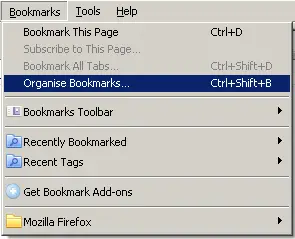
To backup and restore, import and export bookmarks, select the “Organise Bookmarks” from the “Bookmarks” menu as shown in the first screenshot below. (All screenshots in this post were taken with Firefox 3 on Windows XP with the Windows Classic theme).
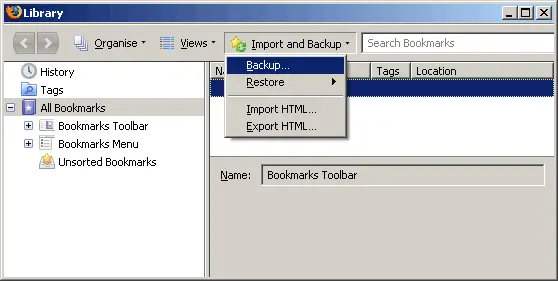
This will open up a bookmarks library window as shown in the screenshot below. You can then click the “Import and Backup” button / menu option as shown below and you will see the options to backup, restore, import HTML and export HTML.
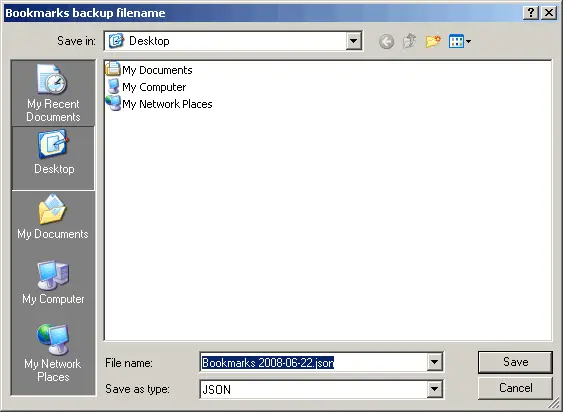
After clicking the “Backup” option a “save as” dialog will open as shown in the screenshot below. You will see the file is named with the date (e.g. Bookmarks 2008-06-22.json in the example below) but you are free to change the name to whetever you want it to be. Choose a folder to save it and click the save button.
The file it saves it in is JSON format, which is sort of like a type of Javascript. The start of the file looks something like this:
{"title":"","id":1,"dateAdded":1213728276671875,"lastModified":1214111252421875,"type": ...
Export Firefox bookmarks to an HTML file
If you select the “Export HTML” option from the “Import and Backup” menu option/button above, you will also be prompted with the file save as dialog as shown in the screenshot below. This time you are saving the file as an HTML file which means it can be then imported into a number of other web browsers.
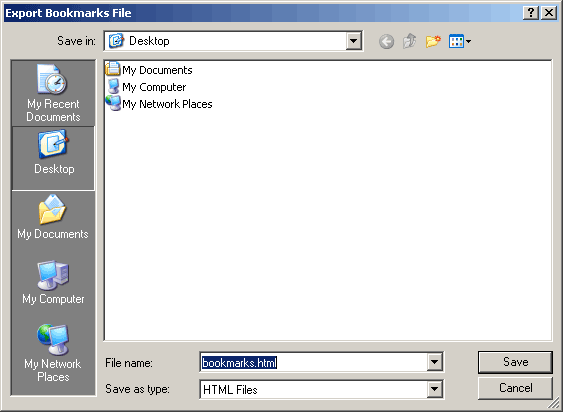
Simply locate the folder you wish to save the bookmarks to and then click the “Save” button. Again, you are free to change the file name to something that suits you better.
