
Google’s Chrome web browser lets you create "application shortcuts" for web pages. These are shortcuts on your desktop, start menu or quick launch which open Google Chrome at that web location. The search bar, options and tabs are not present when running a web page as an application and the website’s favicon is used as the application icon.
Opening tabs, links
You can still open new tabs when running an application with the Ctrl+T shortcut key combination, but this will open the tab in a running instance of Google Chrome or in a new instance of Google Chrome if it’s not already running outside the application. There doesn’t appear to be any way to dock an application back into another Chrome window at the present time.
Clicking links in a page running as an application will do the same thing: it will open them in a regular instance of Google Chrome, and not in your application window.
Create an application shortcut in Google Chrome
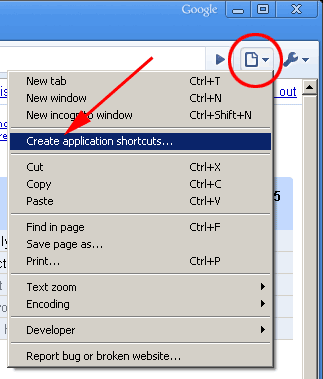
To create an application shortcut, click the document button next to the url/search box as shown in the screenshot below (it’s the button marked with the red circle) and select the "Create application shortcuts" option. In the example used in this post I was creating an application shortcut for Google Reader.
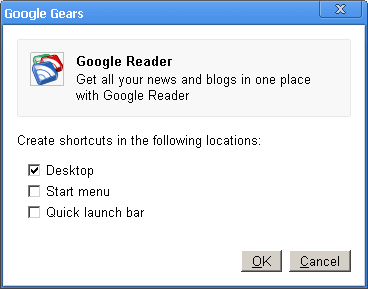
After clicking the "create application shortcuts" option the following window popped open for Google Reader. Simply select where you want the shortcuts to be created and then click the "OK" button.
Screenshots of running as application vs normally
The screenshot below shows Google Reader running as an application.
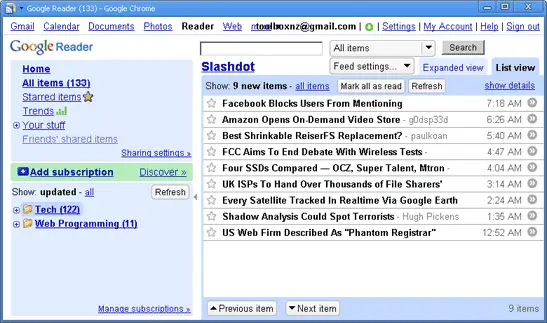
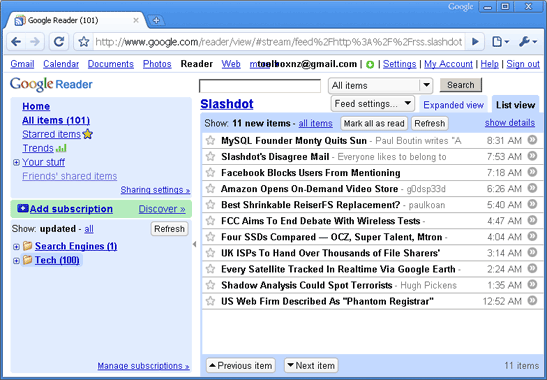
And the next one running in a normal Google Chrome window as a comparison. Note the tabs and search bar are present in the screenshot below when running normally and not present when running as an application above.
Application in the taskbar
The final screenshot below shows how the application appears in the Windows taskbar as a separate application with the application’s name as the title and favicon as the icon.

The first taskbar button is a regular Chrome window; the second Google Reader running as a separate Chrome application; and the third Adobe Photoshop.
