
Forms on websites are typically validated using Javascript on the client side to prevent additional round trips to the server if a form hasn’t been completed correctly, and are then also validated on the server side. When testing a website you need to be able to test both so need to disable Javascript in your web browser to test the server side validation. This post looks at how to disable Javascript in the Mozilla Firefox web browser. The specific version the screenshots come from are Firefox 3 but it should be the same for earlier versions.
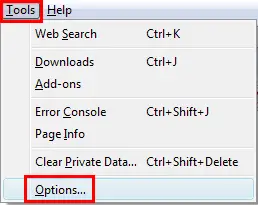
In order to disable or enable Javascript on Firefox, you need to go into the options/preferences screen. This is done either by selecting "Tools" then "Options" from the main menu as shown in the screenshot below from Windows Vista:
or by selecting "Edit" then "Preferences" from the main menu as shown in the screenshot below from Linux:
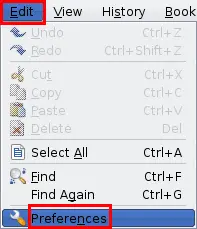
The exact menu location varies depending on your operating system for some reason… This will get you to the options/preferences window. The "Main" section is selected by default so click the "Content" button and the options like the ones below will be displayed.
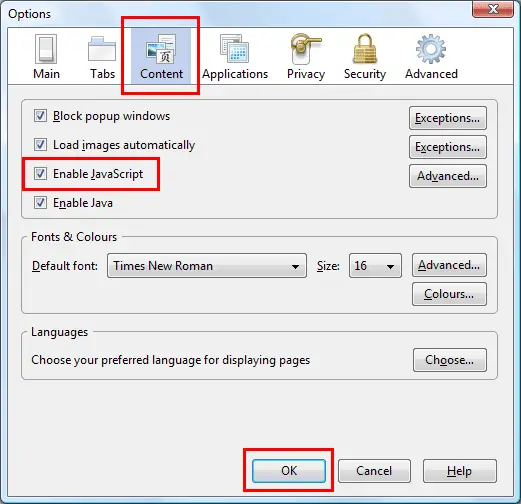
Simply tick/untick the "Enable Javascript" checkbox, depending whether you want to disable or enable Javascript and then click the "OK" button. After disabling Javascript any Javascript events or functions on the current page will no longer work; you do not need to reload the page (in Firefox 3 – it may be different for older versions).
Once you have completed your testing you can follow the above steps to enable Javascript again.
