
Gmail has a web based interface but it’s also possible to access your Gmail mailbox using IMAP or POP and use a different (offline) application, such as Microsoft Outlook or Mozilla Thunderbird to access your Gmail. This post looks at how to enable IMAP access for Gmail. The same settings page also allows you to enable POP access but you’re better off using IMAP.
This post is included as part of a series I have been writing about getting reports from Google Analytics and downloading email and attachments using PHP. This particular post has been written as a supplement to another post that will appear later today about how to download mail using PHP’s IMAP mail functions from Gmail.
After logging into Gmail click the "Settings" link in the top right set of navigation followed by the "Forwarding and POP/IMAP" tab. These are shown in the screenshot below highlighted with the red arrows.
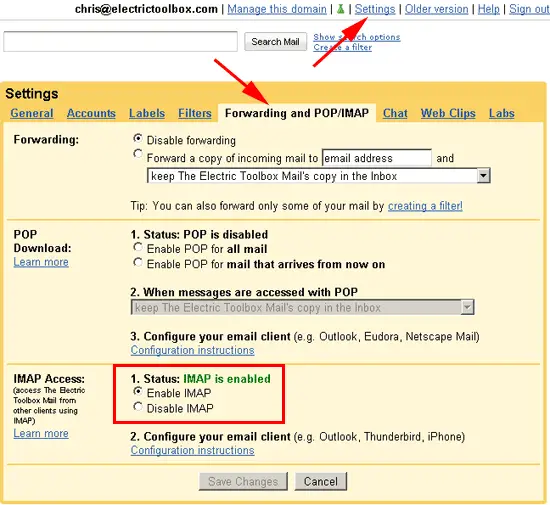
By default IMAP is not enabled. I have highlighted the "IMAP Access" section in the above screenshot with a red box. Simply select the "Enable IMAP" option and then click the "Save Changes" button. You will now be able to acess Gmail via IMAP.
Note that you can allow POP access to your Gmail using the "POP Download" settings and selecting one of the "Enable POP…" options. However it is better to use IMAP.
The settings you need to connect to your IMAP mailbox are as follows:
IMAP Server: imap.gmail.com
Use SSL: yes
Port: 993
Login name: Your full email address e.g. my-email-address@gmail.com
The next post will look at how to connect to Gmail using IMAP with PHP.
