
TortoiseCVS will not work on network shared drives by default so there won’t be any of the CVS overlays in Windows Explorer for mapped drives and the right-click context sensitive menu won’t show the checkout, commit, etc options. This post shows how to enable TortoiseCVS on network drives. Note that TortoiseSVN doesn’t have this problem.
Enabling TortoiseCVS on mapped drives
Right-click in Windows Explorer to bring up the context sensitive menu. An example of this is shown below. Select CVS and then Preferences.
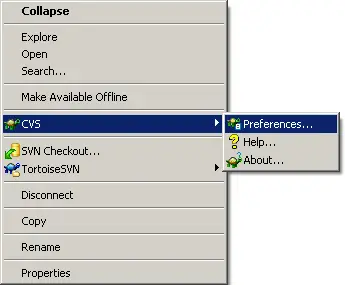
This will bring up the TortoiseCVS preferences dialog as shown below. Click the "Policy" tab.
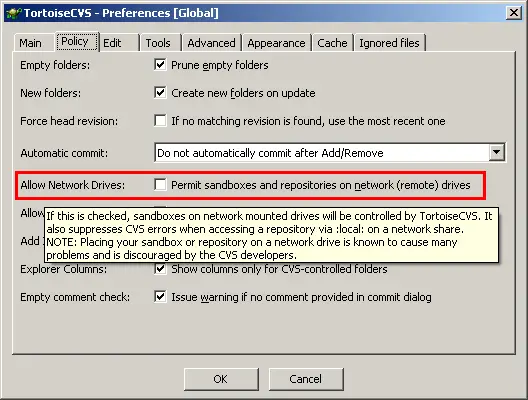
To enable TortoiseCVS on network drives tick the box which I have highlighted with a red box in the above screenshot. Note the warning message when you mouse over the option:
"If this is checked, sandboxes on network mounted drives will be controlled by TortoiseCVS. It also suppresses CVS errors when accesing a repoistory via :local: on a network share. Note: Placing your sandbox or repository on a network drive is know to cause many problems and is discouraged by the CVS developers."
So they don’t want you to do it. However, after a week of using CVS over a network share myself I haven’t had any issues. It doesn’t say what sort of problems there might be, but if you do enable this and have some issues it may be why.
