
On Windows Vista, every time you start up Adobe Photoshop CS2 you are asked to register. There’s an button labelled "Do Not Register", but despite clicking this the next time you start Adobe Photoshop CS2 you will be prompted to register again. This post looks at the solution for this problem.
I bought a new laptop last week to replace my broken one, and installed Adobe Photoshop CS2 on it. I had been running Photoshop on the old laptop but since I can no longer use it needed to install it on the new one. The first time I started Photoshop I got the normal registration screen as shown in the screenshot below. I didn’t think there was any point registering because I had already register in the past, so clicked the "Do Not Register" button. The only problem is that every time I start Photoshop I get the same prompt, despite clicking "Do Not Register" each time.
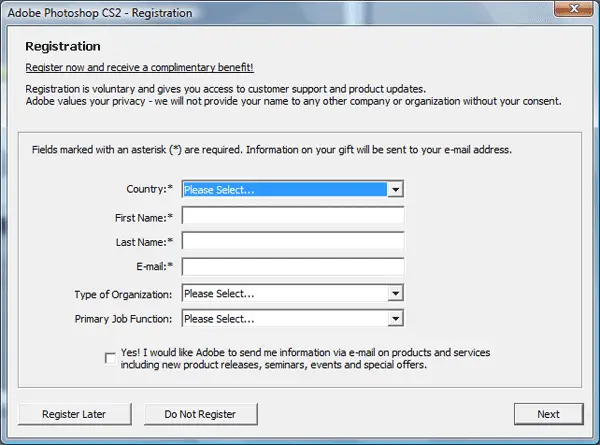
A quick search in the world’s favourite search engine, and I discovered that to get rid of the prompt you need to run Photoshop as Administrator once, click the "Do Not Register" button and then exit. Now when running it again as a normal user you no longer get prompted to register each time Photoshop starts.
To run Adobe Photoshop CS2 on Vista as administrator, locate it on the Start Menu and right-click. This will open up a dialog which allows you to "Run as Administrator" as shown in the screen shot below.
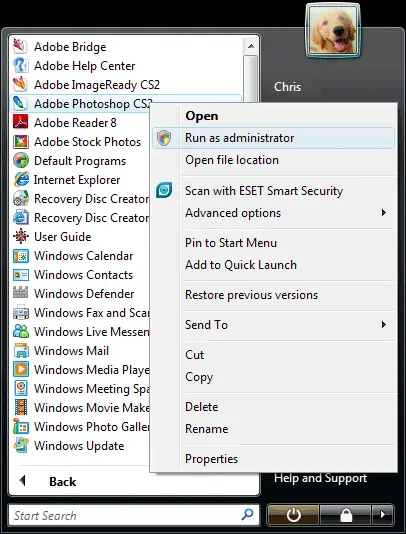
After clicking the run as administrator option you will be prompted by user account control whether you want to allow the action (I don’t seem to be able to do a screenshot of this) so confirm it. Photoshop will then run, prompting you to register. Click the "Do Not Register" button and quit. Then run Photoshop normally and the registration prompt will be gone.
