

While modifying a table in Microsoft SQL Server with about 10 million records in it, I got the error message “unable to modify table – timeout expired…” and the table was not able to be modified. The solution was to change the timeout settings which is covered in this post.
When I first attempted to save my changes to the table, I got an initial warning after a few seconds as shown in the screenshot below.
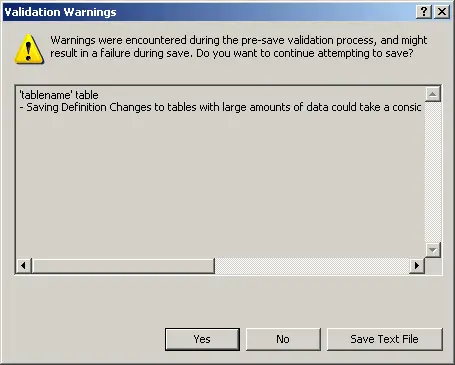
The full text from the message in the above screenshot is “Warnings were encountered during the pre-save validation process, and might result in a failure during save. Do you want to continue attempting to save?” And then “Saving Definition Changes to tables with large amounts of data could take a considerable amount of time. While changes are being saved, table data will not be accessible.” Naturally I clicked the “Yes” button after getting this warning because I really did want my changes saved. Also I’d paused the process which updates this table so it wouldn’t result in any errors while I was saving the new table structure.
After 30 seconds, I got the error message in the following screenshot.
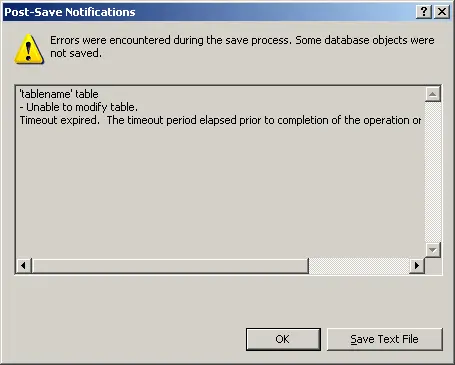
The full text from the above screenshot is “Errors were encountered during the save process. Some database objects were not saved” and “Unable to modify table. Timeout expired. The timeout period elapsed prior to completion of the operation or the server is not responding.” The changes to the table that I had attempted to make were not saved and the table structure was the same as it had been previously.
The issue is caused by a timeout setting for “table designer updates” which is set to 30 seconds as the default value. If your changes cannot be saved in this time then they will not be. To change the setting, go to “Tools” and then “Options” from the main menu of your SQL Server Management tool. Then click on the “Designers” section of the options. This is shown in the screenshot below.
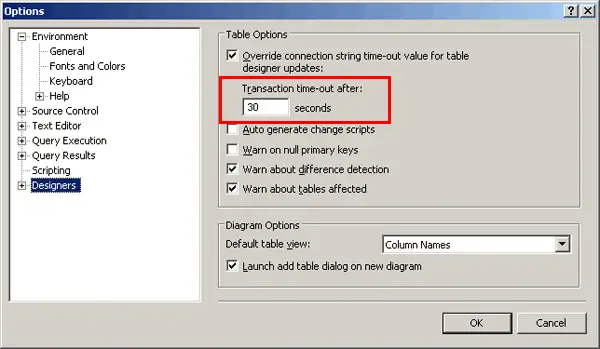
The value that needs to be changed is highlighted with a red box in the screenshot above and is labelled “Override connection string time-out value for table designer updates” and “Transaction time-out after”. Change the default 30 seconds value to some higher value, click the “OK” button and run your table structure change again.
Note that the transaction time-out setting must be a numerical value greater than 0. Setting it to 0 to prevent any timeouts will not work and you will be presented with an error message as shown in the screenshot below.
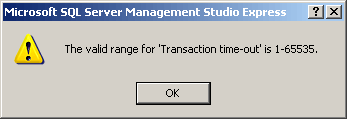
You can set it to any value between 1 and 65535. Given that this is in seconds, 65535 is over 18 hours so setting it to the maximum value would normally work. For my table with 10 million records, I set it to 600 seconds (10 minutes) to see if that would work. The actual table save took more than 10 minutes but it didn’t time out, which surprised me, and the new table structure took affect after that.
Note that while the table structure is being saved, the SQL Server Management tool is completely inaccessible and the window is usually blanked out like it has crashed. Just wait until it’s all done and you should be alright.
