
VMWare Server Console allows you to connect to a VMWare Server virtual machine running either on your local machine or a remote machine. The remote machine might be on your local network or located somewhere on the Internet. This post looks at how to deal with the error message in the VMWare Server Console "unable to connect to remote host: cannot connect to remote host x.y.z.a: connection refused" when trying to connect.
The VMWare Server Console login screen looks like the screenshot shown below:
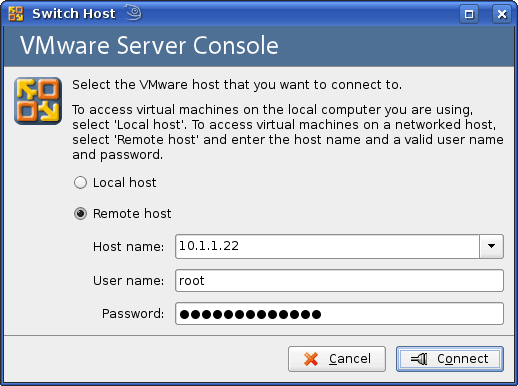
You can either select "Local host" or "Remote host" and then enter the remote host login details; selecting the remote host and login details are shown in the example screenshot above. You would then click the "Connect" button to connect to the VMWare Server virtual machine.
The error message we are looking at in this post is shown in the screenshot below, "Unable to connect to the remote host: Cannot connect to host x.y.z.a: Connection refused":
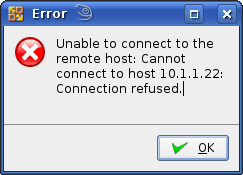
The reason for this error is likely to be caused by VMWare Server listening on a different port than the default (or that you got the IP address incorrect and are trying to connect to some other server!) By default, VMWare Server will listen on port 902, and VMWare Server Console will attempt to connect on port 902. However, it’s possible that you or VMWare Server will have configured itself to listen on a different port number. This happened to me when I was setting up a VMWare Server and it offered to listen on port 904 instead.
To connect to VMWare Server using VMWare Server Console on a non-standard port, you simply add : followed by the port number after the "host name" setting as shown in the example screenshot below. In my example I have used the IP address 10.1.1.22 and the port 904, resulting in a host name of 10.1.1.22:904.
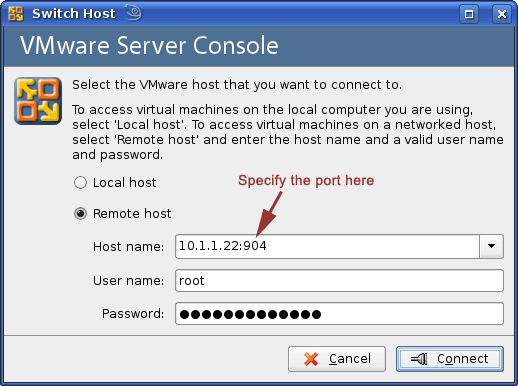
After changing the host name setting as described above to use the port number as part of the host name, you should be able to succesfully connect to the VMWare Server host. If you can’t, then you need to check that a) the IP address is correct, b) VMWare server is actually running and c) the firewall allows access to the selected port from your IP address.
